
Fewer reminders.
More little wins.
Children finish tasks, check in and earn rewards. Parents notice effort and encourage good habits. Turn everyday reminders into clear family agreements.

A guide for parents and children · 2026.10.28
Download illustrated PDFThis guide mainly covers the iPhone/iPad app. The web version may differ. Device controls require authorisation in the app.
Less reminding. More ownership.
Homework, reading, packing a bag, app time: repeating reminders can be tiring for everyone. Step Planet turns family agreements into clear goals and visible progress, helping children take more ownership.
- Make the plan clear so children know where to start.
- Let children check in after finishing, practising ownership.
- Review and encourage so effort is noticed.
- Exchange earned points for agreed rewards worth working towards.
- Look back at the planet, badges and reports, then agree on the next step.
View screens (tap an image to enlarge)
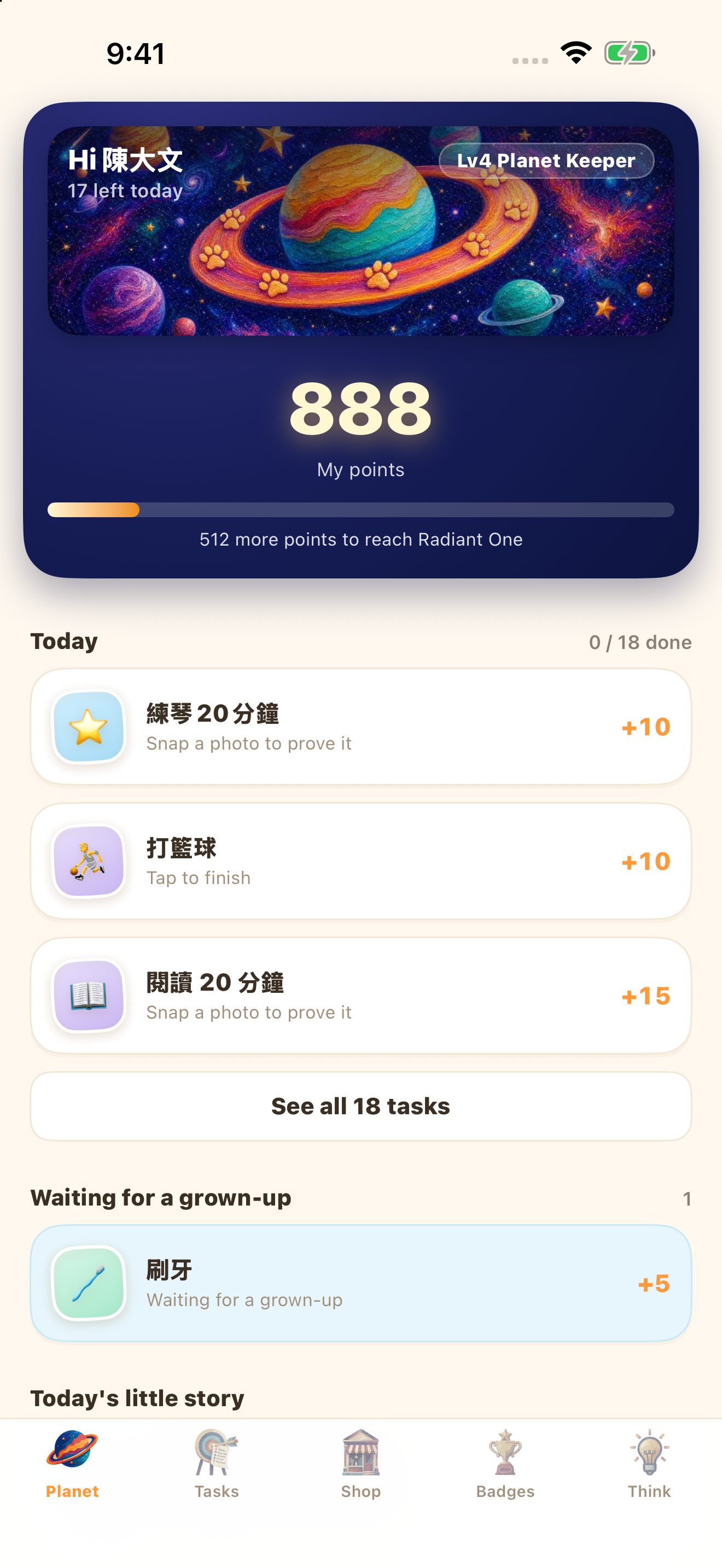
Find your way around
Parents and children have different tabs. Parents manage the plan; children follow their own progress.
- Today shows pending reviews and completed or unfinished tasks.
- Tasks manages habits; Screen manages apps, websites and time requests.
- Rewards contains wishes, gifts and the ledger; Report shows trends; Settings manages the family.
- Children use Planet for progress, Tasks for check-ins and Shop for rewards.
- Children use Badges for achievements and Think for reflection.
- Before changing a setting, parents check which child is selected at the top.
View screens (tap an image to enlarge)
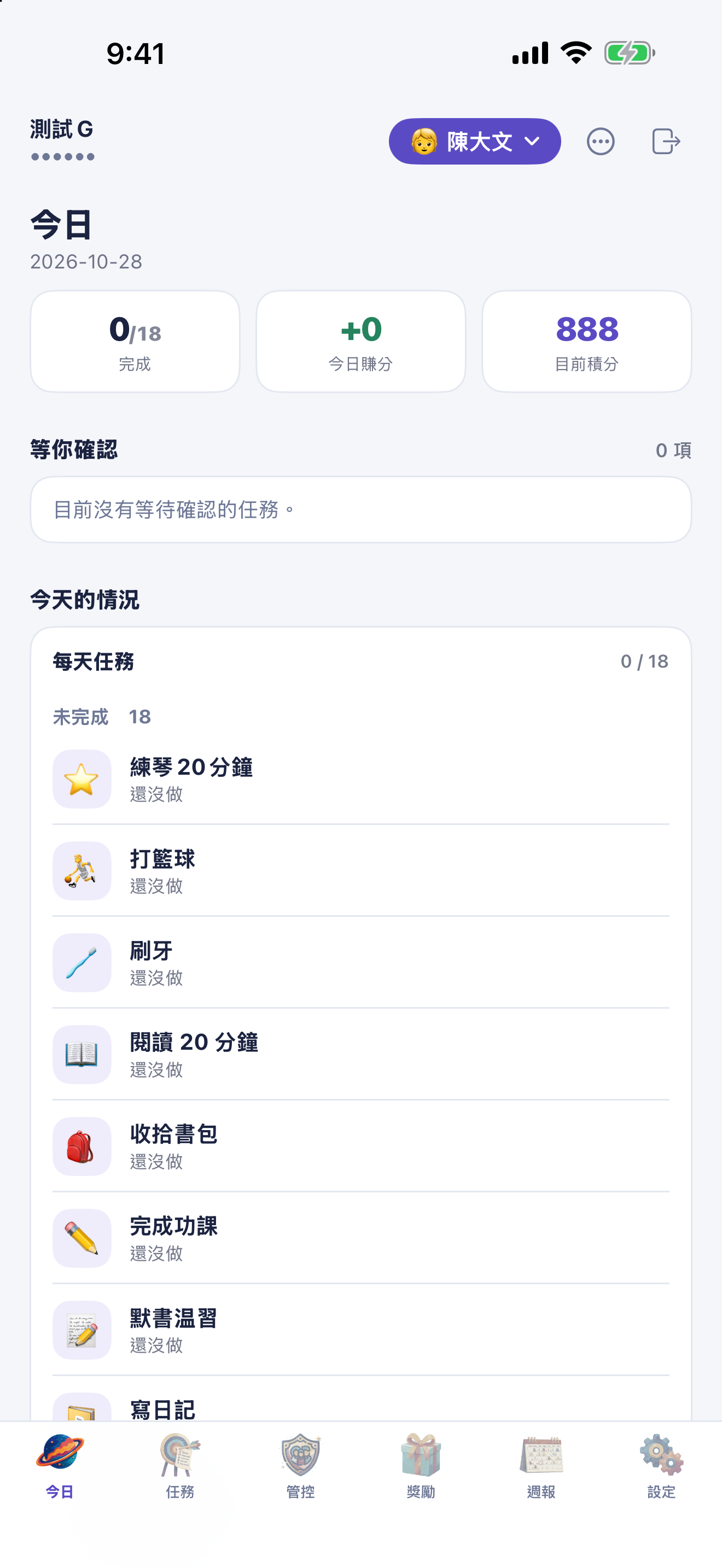
Set up the parent account
Create a family and a child profile first. Children do not need to register a parent email account.
- Open the app and choose the parent sign-in.
- Use your existing sign-in method, or follow the account creation screen.
- Create a family. For an existing web family, sign in and follow the claim flow.
- Create the first child’s nickname and icon. Later, when adding another child, choose a template, copy settings or start blank.
- Find the family code in Settings and share it privately with your child.
View screens (tap an image to enlarge)
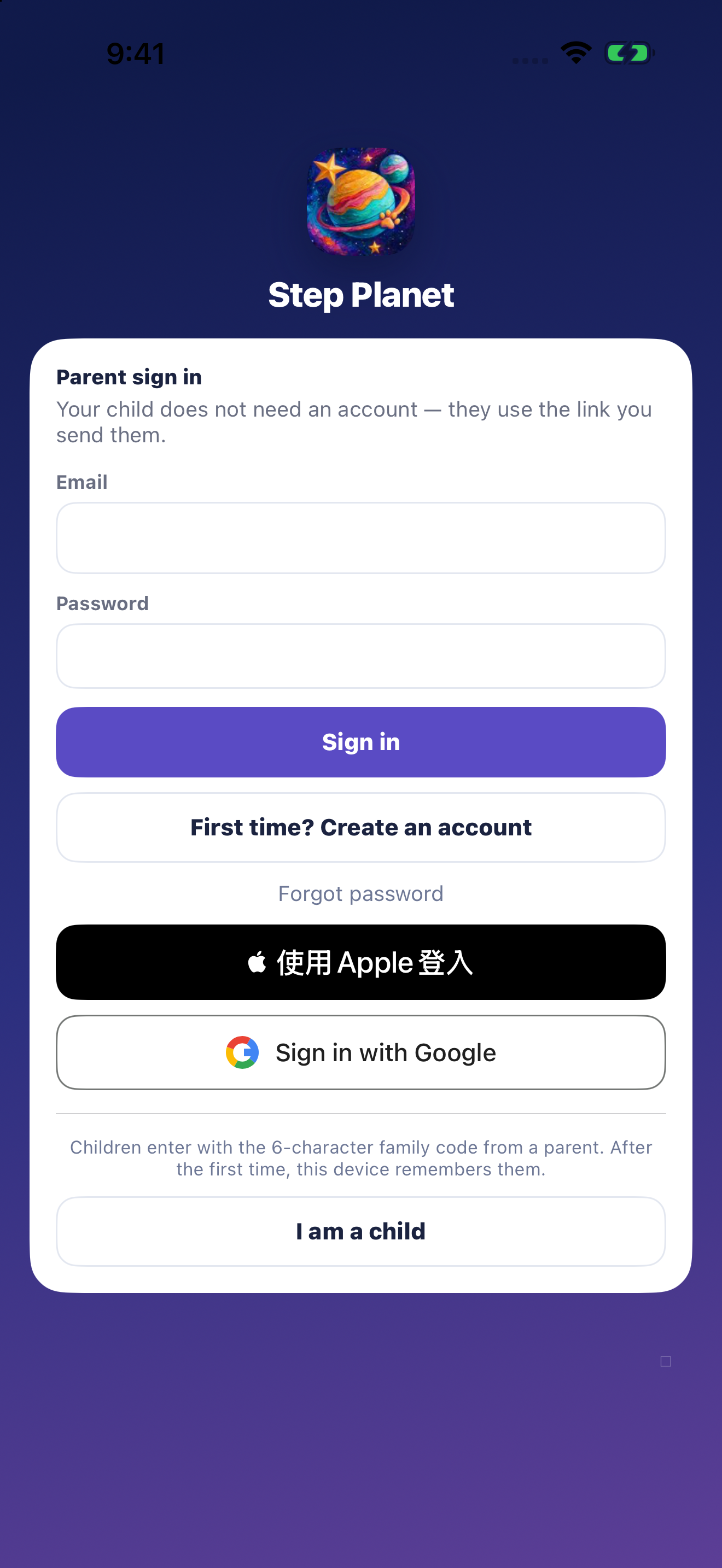
Create your first parent account
A parent creates the account; children join with a family code. Choose a sign-in method you will keep using so the family’s records stay together.
- On Parent sign in, choose First time? Create an account.
- Enter a parent email you can access and choose your own password.
- Follow the password requirements; use a longer password you have not used elsewhere.
- Choose Create account. If asked to check email, open the confirmation message.
- The link may open the website. Afterwards, return to the app and sign in with the same email and password.
- Already registered? Choose Already have an account? Sign in instead.
- Apple and Google sign-in are also available. Parents follow the system prompts and keep using the same method.
View screens (tap an image to enlarge)
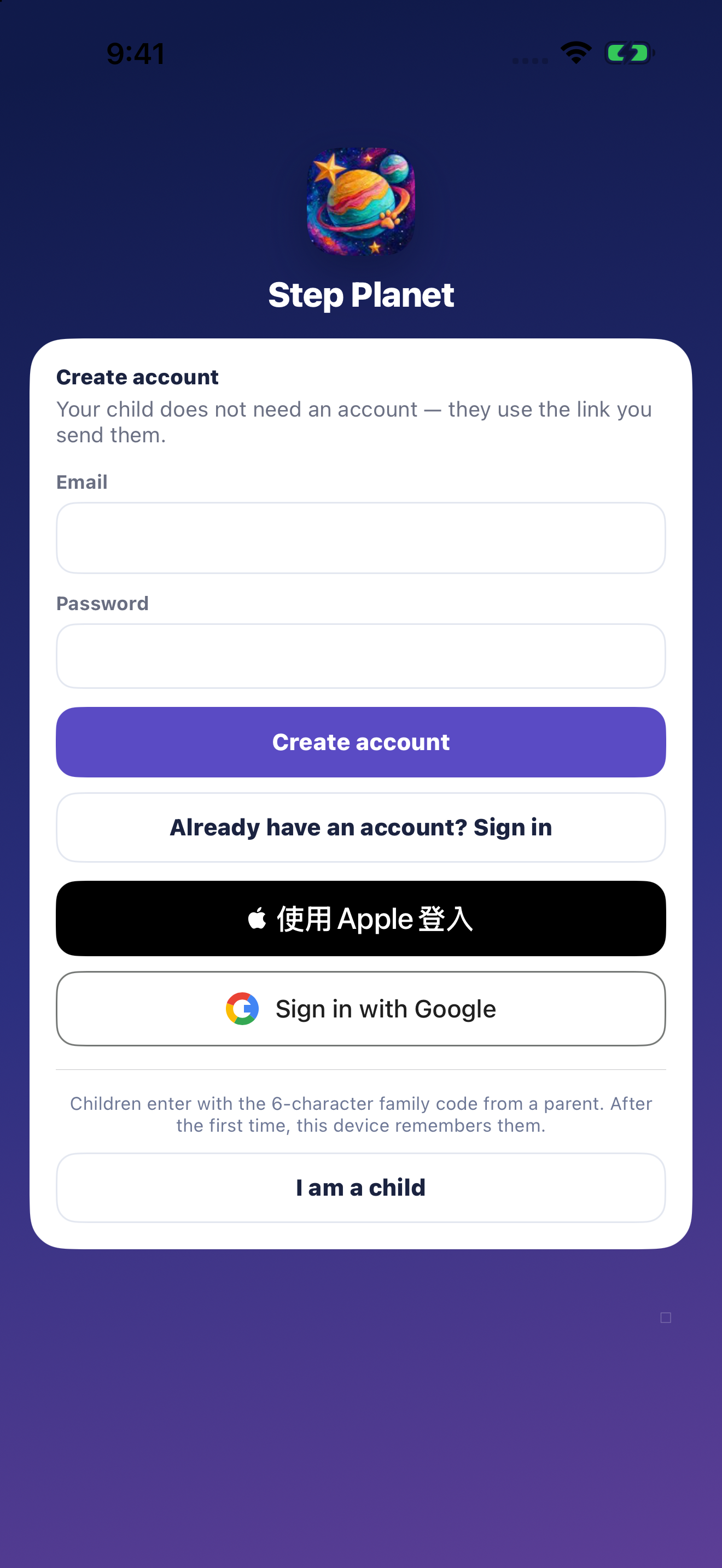
Create a family and invite your child
Once the parent account is ready, give the family’s goals a home. A child needs a nickname, not a separate email account.
- After the first sign-in, choose to create a new family.
- Enter a family name and the first child’s nickname, then choose an icon.
- Check starting points and choose Create planet to create the family.
- Find the family code in Settings and share it privately with the child.
- On the child’s device, choose I am a child, enter the code, and select the correct name.
- Parents return to Tasks and adjust the first goals together.
Help a child join
A family code opens the child’s tasks and planet. Device controls require a separate setup and authorisation.
- Install and open Step Planet on the child’s device.
- Choose the child entry and enter the code provided by a parent.
- Select the correct child when prompted.
- Check the name on the Planet screen. The device normally remembers this choice.
- If the family cannot be reached, ask a parent to check the code and child profile first.
Create an achievable task
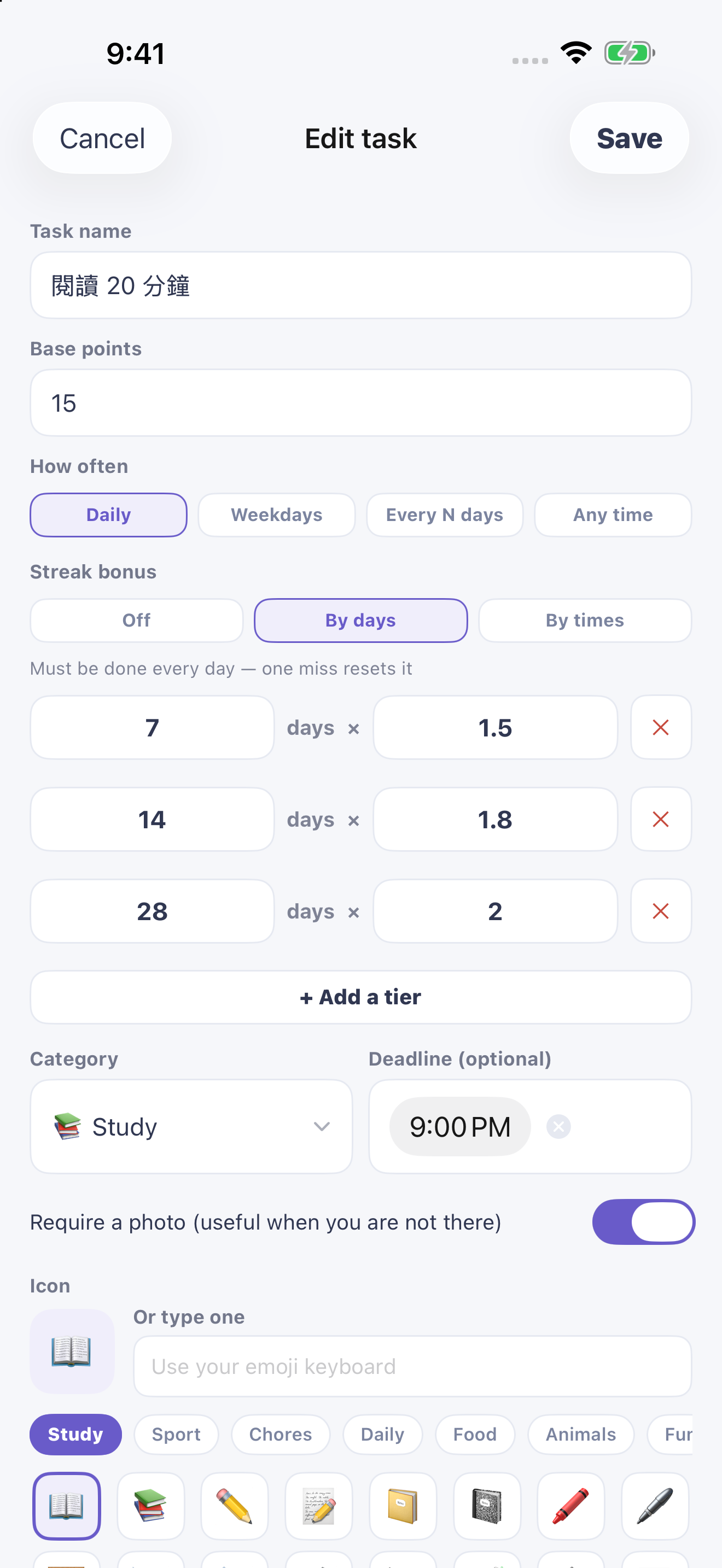
A clear title, schedule and point value help children understand what to do.
- Select the child, open Tasks, and add a task or choose a template.
- Enter a title, base points and category, then choose a recognisable icon.
- Choose daily, selected weekdays, every few days or anytime.
- Set a due time, photo requirement and streak bonus only when needed.
- Save and check the list. Open an existing task to edit it.
- Use the task list’s ordering controls when you want to rearrange items.
View screens (tap an image to enlarge)
Check in after a task
Make effort visible: do the task first, then record it.
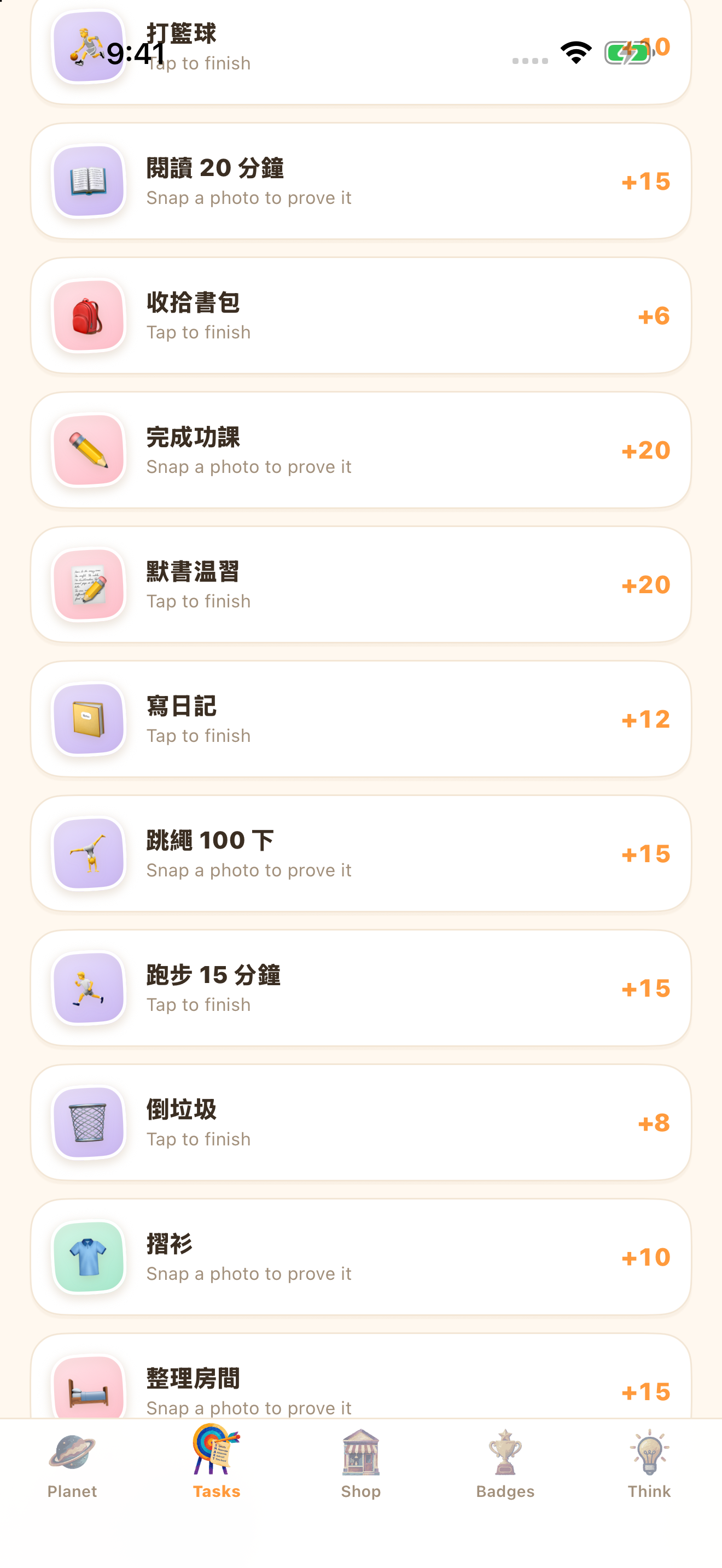
- Open Tasks and find what you plan to do today.
- Complete it, then tap the task’s check-in control.
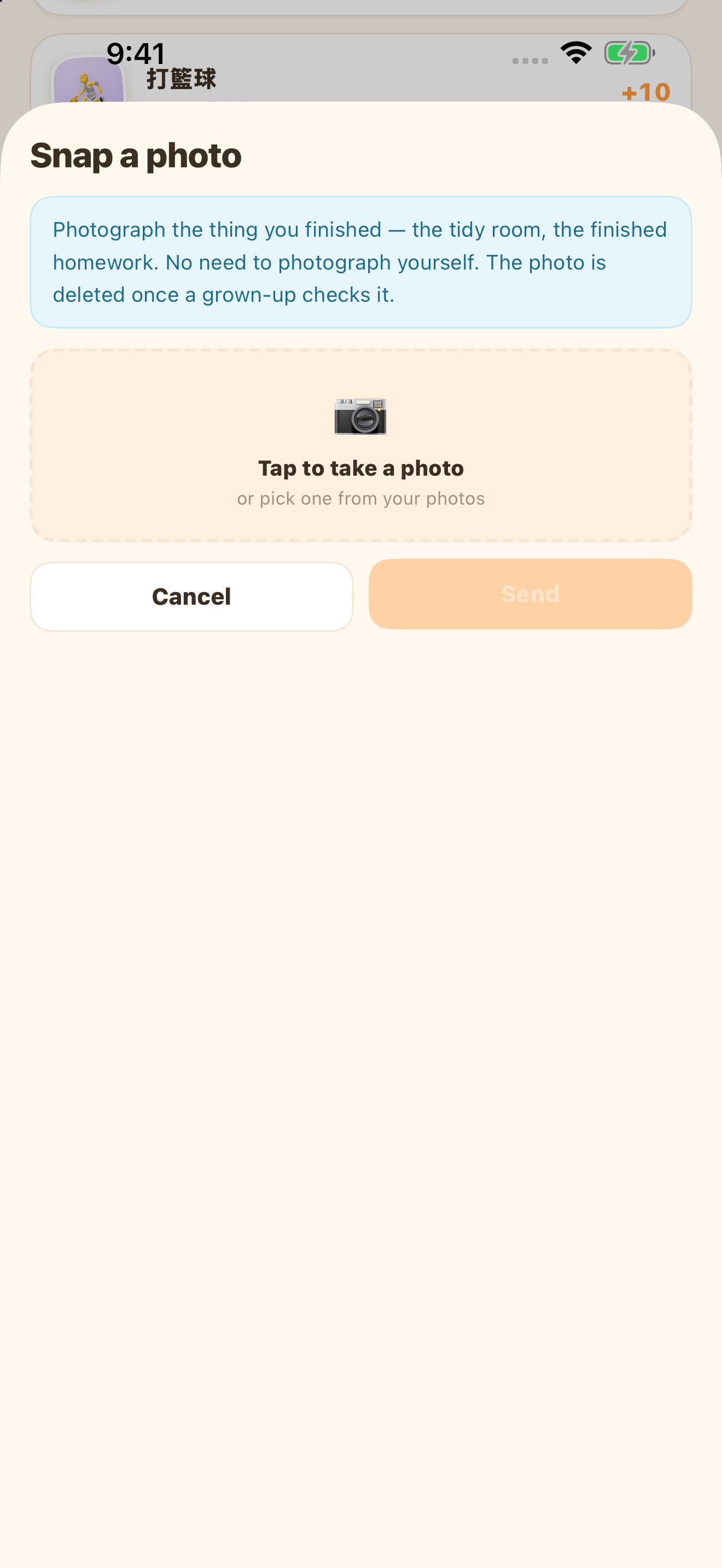
- If a photo is required, take or select a suitable photo of the result.
- Submit and check the pending status in the list.
- Wait for a parent’s review. Submission alone does not add points.
- Anytime tasks can be recorded repeatedly according to their settings.
View screens (tap an image to enlarge)
Privacy is part of the plan.
Noticing effort does not mean keeping every detail of a child’s life. Each piece of information should have a clear purpose.
- Task photos are uploaded for review by the family’s parents.
- Approval or return removes the photo from the task record; it is not a permanent album.
- Children do not need a personal email account; they join using the parent’s family code.
- Device controls require Apple authorisation; app-selection data is encrypted for authorised family devices.
- Share only what is needed, photograph the result, and keep family codes, setup codes and passwords private.
- Parents can open the Privacy Policy from Settings for the full details.
Review and encourage
Look at the result before awarding points. Give a clear explanation when something needs another try.
- Open Today and check the child name.
- Find the submission awaiting review.
- Look at the result or photo to understand the effort.
- Approve completed work, or return it and talk about what to try again.
- Check the completed section and points ledger together.
- Review proposed tasks and adjust their settings before saving.
View screens (tap an image to enlarge)
Agree on meaningful rewards
A reward can be time together or a small wish your child wants to work towards.
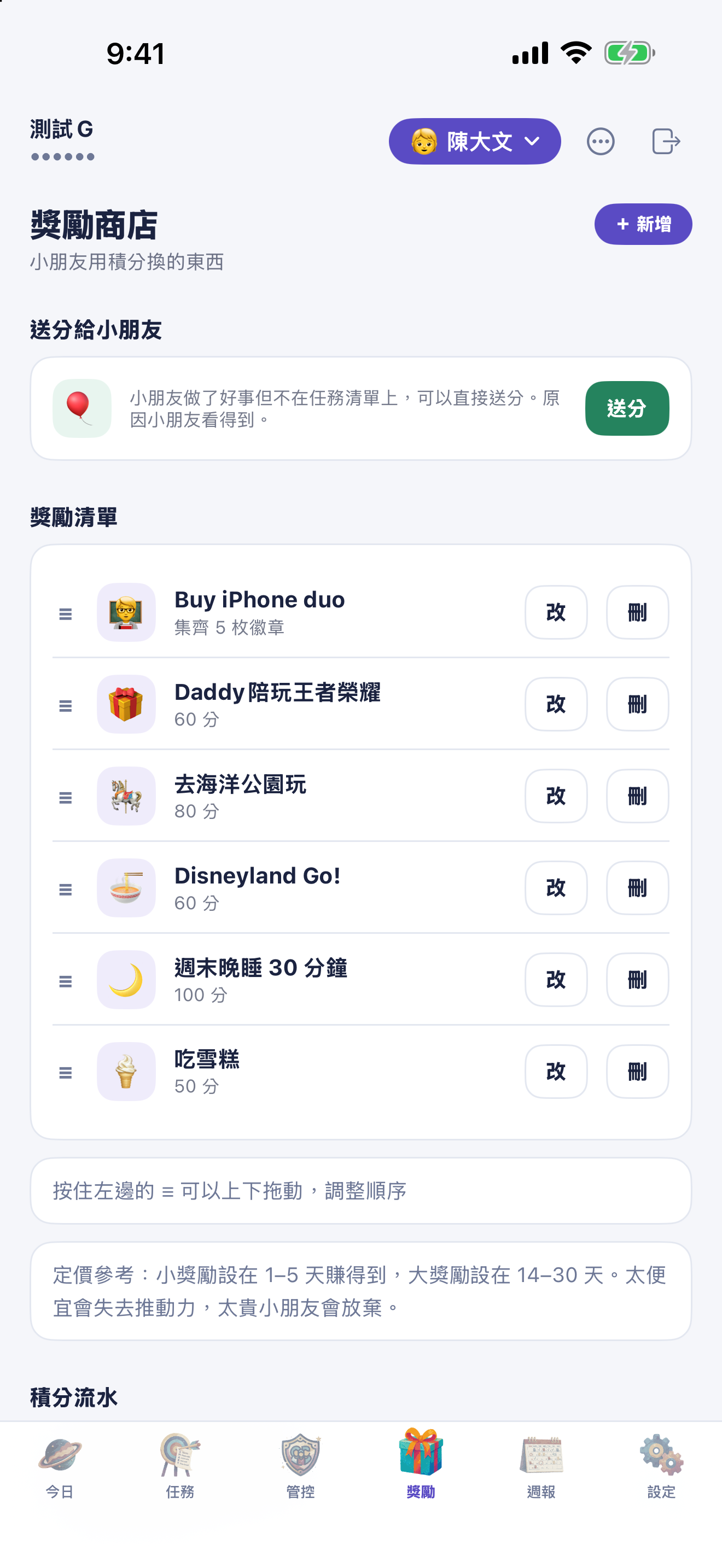
- Select the child and open Rewards.
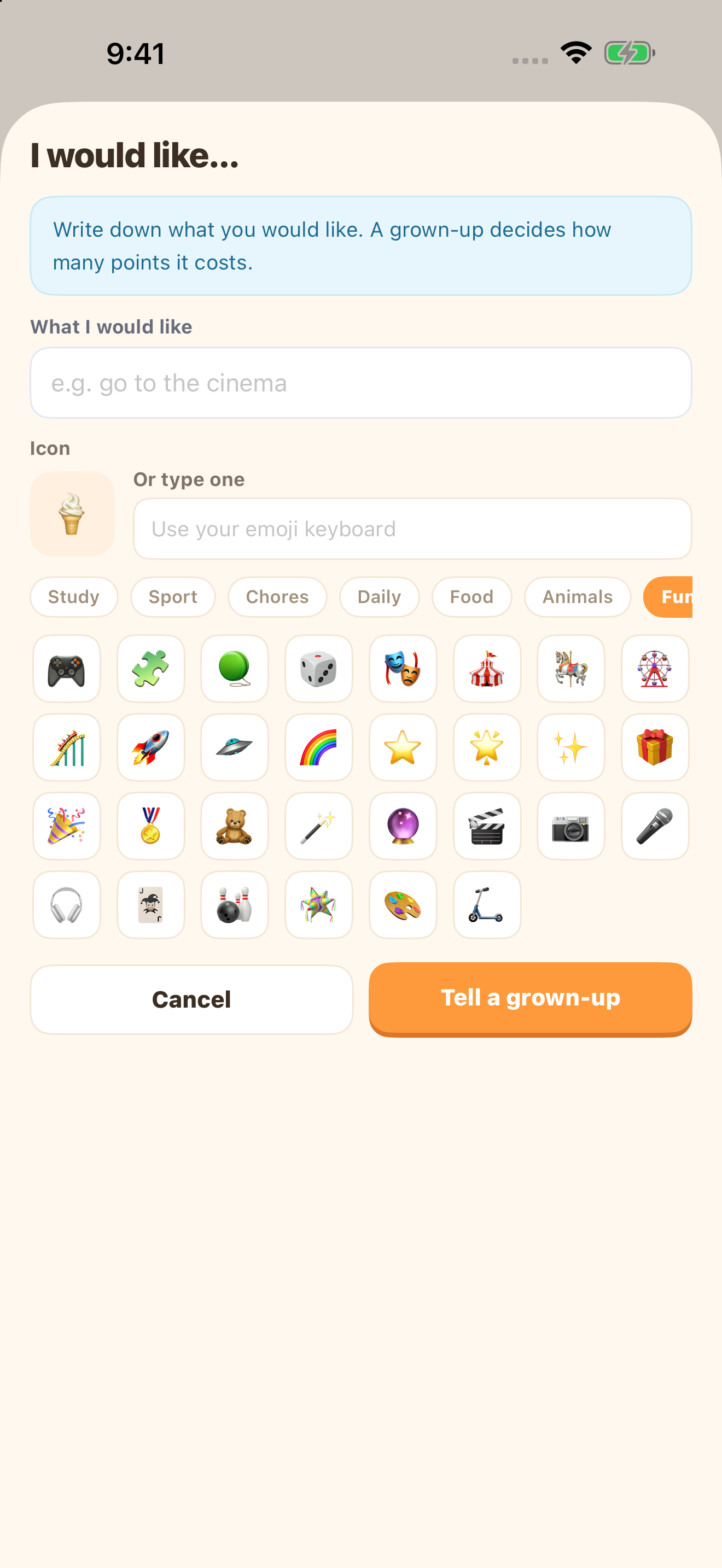
- Add a reward title, icon and point cost.
- For a badge-based reward, set the badge requirement separately from point rewards.
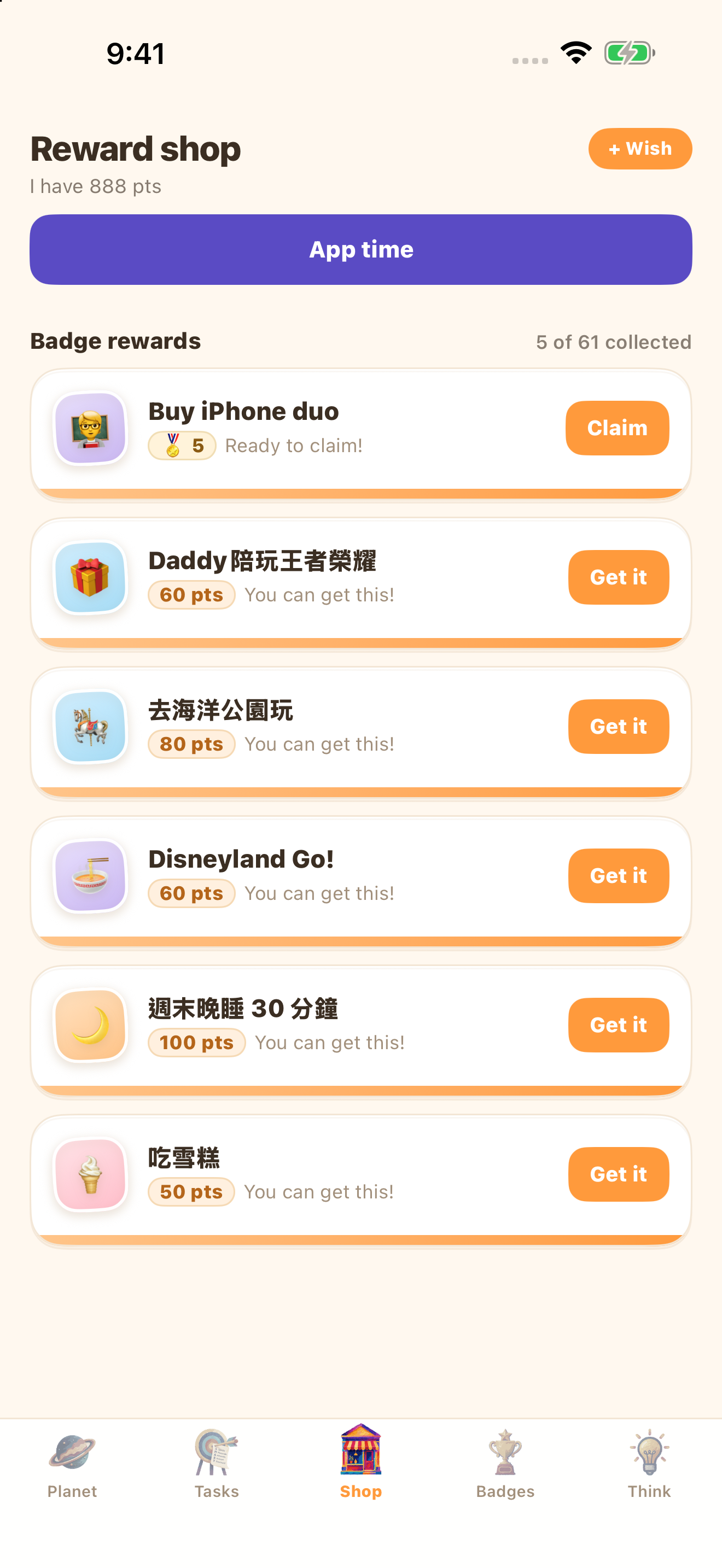
- Save so the child can find it in Shop.
- Review wishes proposed by the child and set a price before making them redeemable.
- Discuss the reward first. Not every form of encouragement needs a price.
View screens (tap an image to enlarge)
Redeem a reward and celebrate
Children see how their effort connects to an agreed reward.
- Open Shop and check your balance and available rewards.
- Choose a reward and read its points or badge requirement.
- Confirm redemption. If points are short, keep earning; credit depends on family settings.
- Parents find rewards awaiting fulfilment in Rewards.
- After actually providing the reward, parents mark it fulfilled.
- Children can follow progress in their redemption history. Once the reward is provided, celebrate the effort that made it possible.
View screens (tap an image to enlarge)
Understand points and the ledger
The ledger shows where points came from and how they were used.
- Parents open the points ledger from Rewards.
- When gifting points, enter an amount and a reason the child can understand.
- Review task earnings, redemptions, deductions and refunds.
- Check daily earning caps, deduction guidance and credit rules in Settings.
- Review the balance impact before changing starting points.
- If a total looks wrong, inspect the ledger rather than redeeming again.
View screens (tap an image to enlarge)
See progress over time
The Report tab brings several days of activity together so families can spot useful patterns.
- Select the child and open Report.
- Review seven-day completion and point totals.
- Use the eight-week heatmap to spot consistent days.
- Review the 30-day category view and discuss balance.
- Celebrate one improvement and agree on the next small goal.
A planet full of little wins
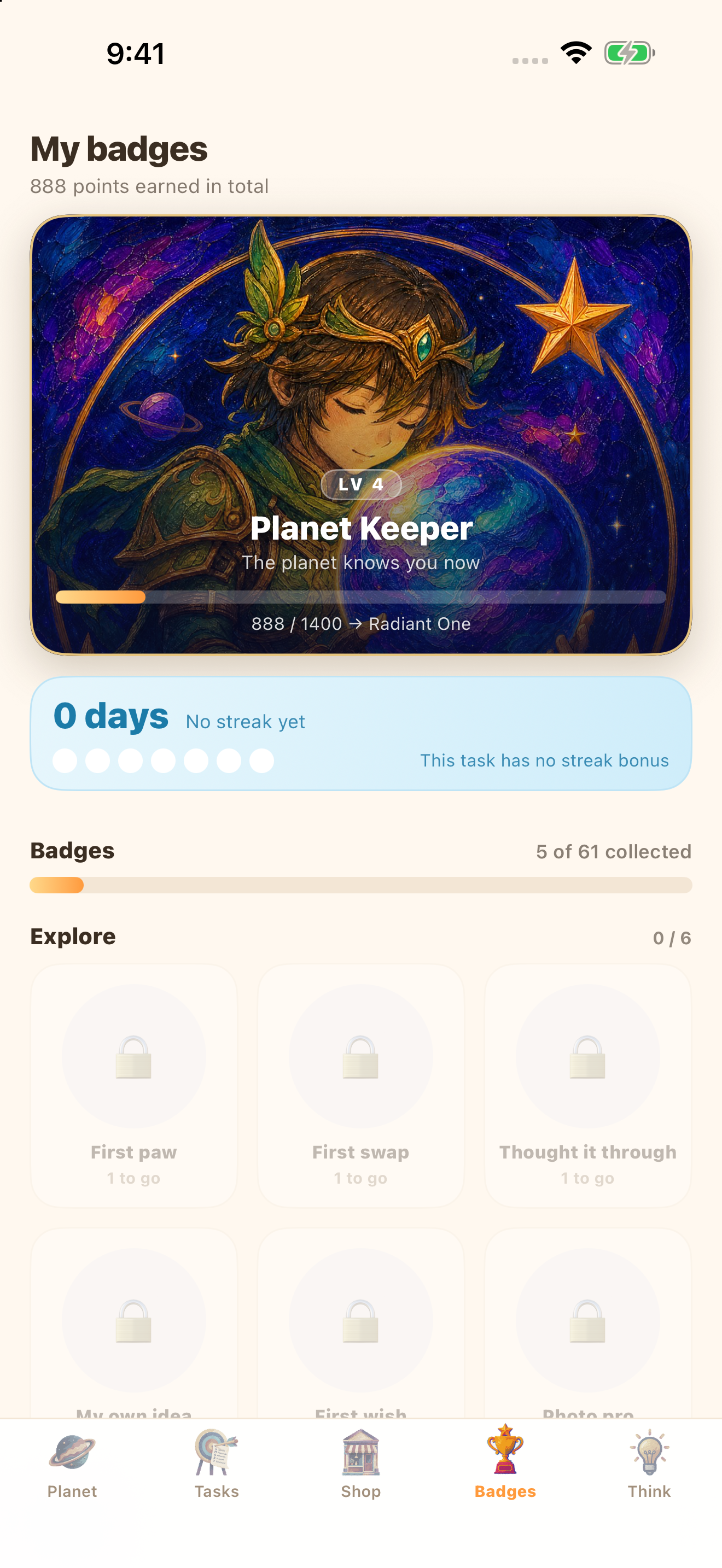
Children can look back at their effort and see their progress grow.
- Open Planet for points, today’s tasks and pending reviews.
- Open Badges for levels, progress and badges.
- Read badge requirements and progress, and pick a small goal to work towards.
- Scroll through growth memories and unlocked artwork.
- Choose a personal goal together, without comparing yourself with other children.
View screens (tap an image to enlarge)
Reflect to grow, one step at a time.
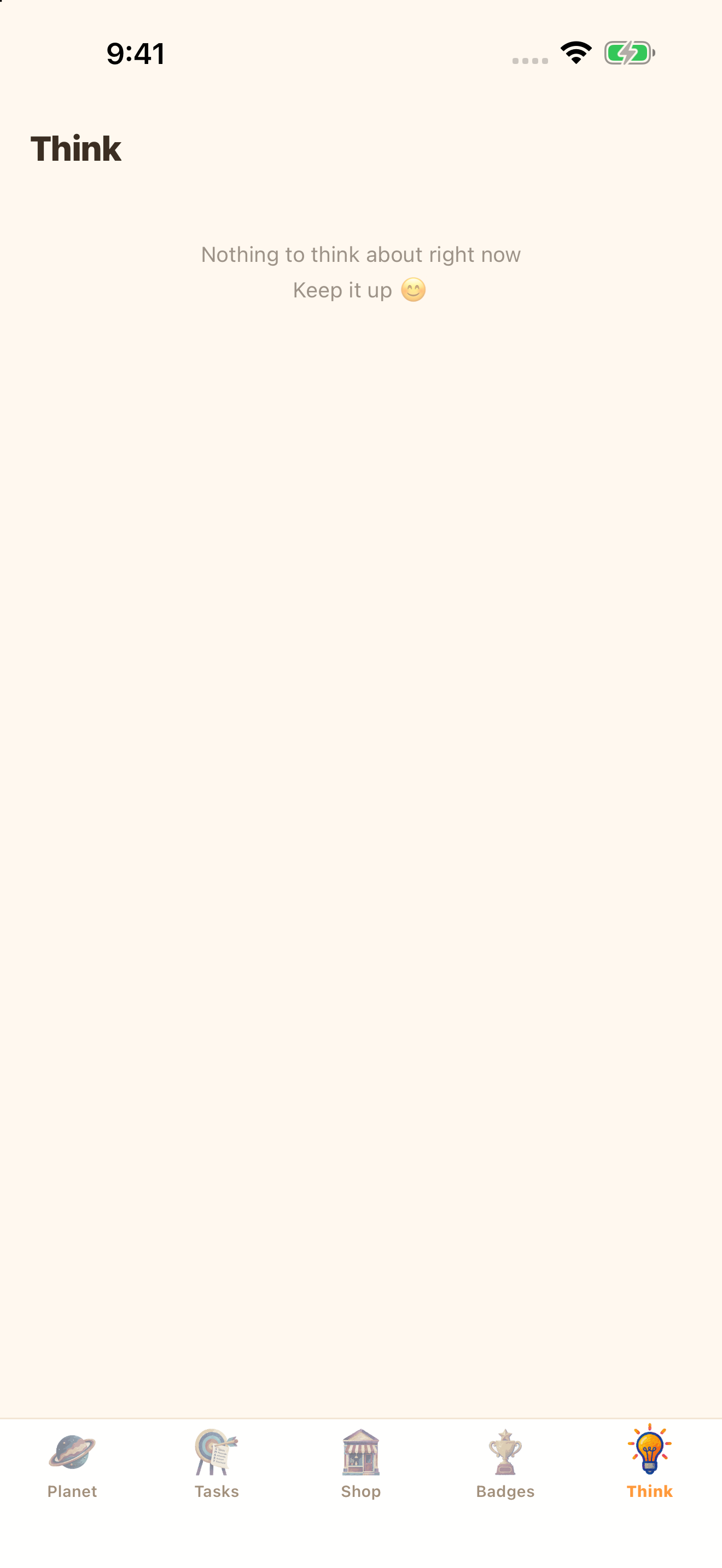
Everyone has moments they would like to handle better. Explain what happened, share your thoughts, and choose one practical next step. Reflection is a chance to begin again.
- Parents manage behaviour items in the behaviour area of Tasks.
- Check the deduction and reason; the suggested amount is not mandatory.
- Children open Think and find the pending record.
- Answer the three prompts; the first and third are required, then submit.
- Parents review the reflection; points may be partly returned under the rules.
- Agree on one practical thing to try next.
View screens (tap an image to enlarge)
Set up device controls
Parents select the correct child, then complete Apple authorisation and app or website selection on the child’s device.
- Open Screen → Control settings on the parent device and create an initial setup code.
- On the child device, open Device controls setup at the bottom of Planet.
- Enter the code and choose the method matching that device’s Apple account.
- For an Apple-family child account, follow the system’s family-parent confirmation.
- For other eligible devices, choose individual authorisation and verify on that device.
- Select the items to manage, then save and apply.
- Refresh the parent view and check that the device has reported the setting as applied.
View screens (tap an image to enlarge)
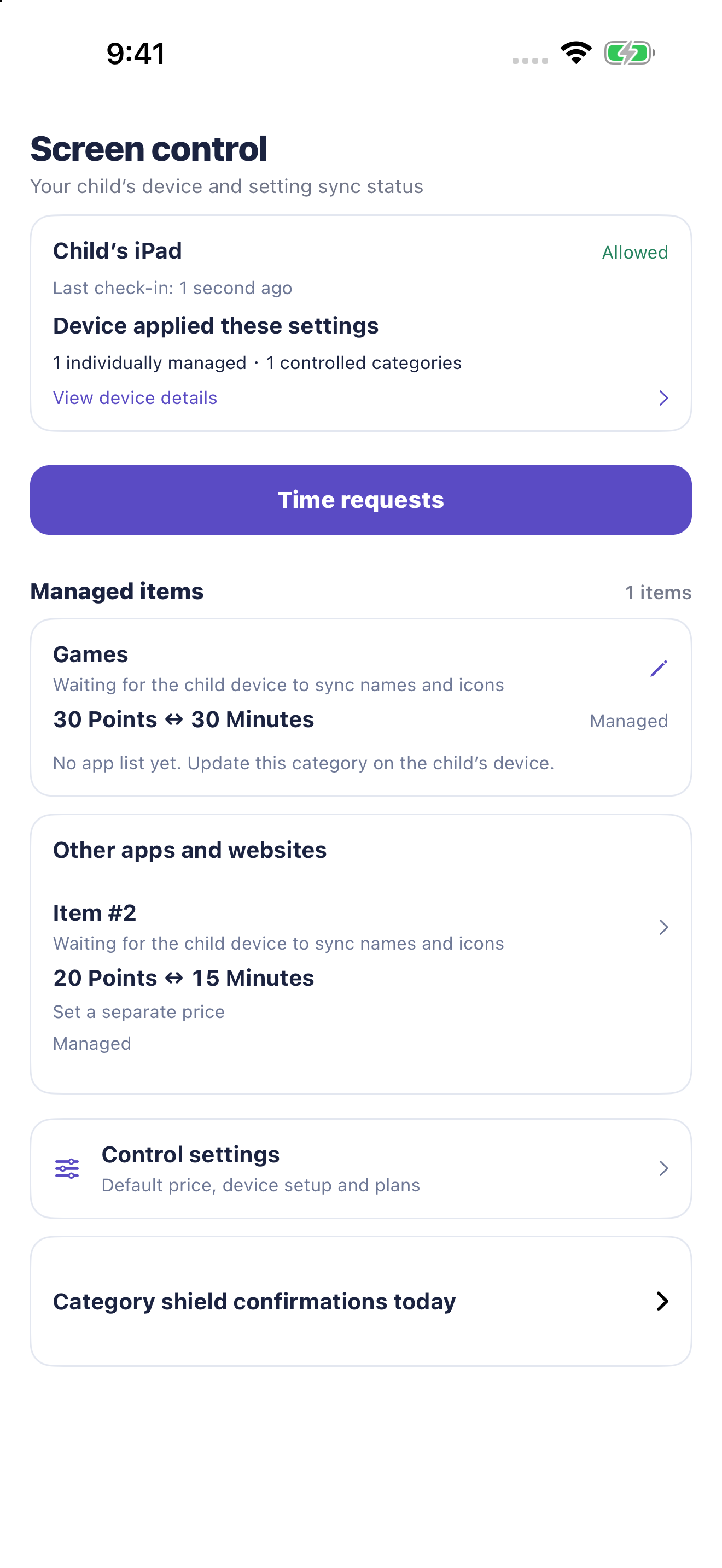
Choose apps, websites and categories
Individual selection is precise. Premium category controls make it easier to manage a whole category.
- After pairing, parents use Open setup on their own device; no fresh code is needed each time.
- Return to setup on the child device and continue; unfinished drafts are retained.
- Select individual apps or websites on the child device.
- Premium can also add an Apple system category and save its current app batch.
- Cancelling the picker keeps the old selection. Save and apply when ready.
- Refresh a category to include new apps in the redeemable list; automatic background list updates are not guaranteed.
View screens (tap an image to enlarge)
Set prices and free access
Set a shared price first, then override exceptions only when needed.
- Set the default reward exchange price in Control settings.
- Premium can set prices for Apple system categories.
- Open an app item and choose inherited pricing or its own points and minutes.
- Price priority is item override, active system-category price, then default.
- Free access means no minute exchange is required; price fields no longer apply.
- Save and wait for the child device to sync, then check its applied status.
View screens (tap an image to enlarge)
Ask for 15, 30 or 60 minutes
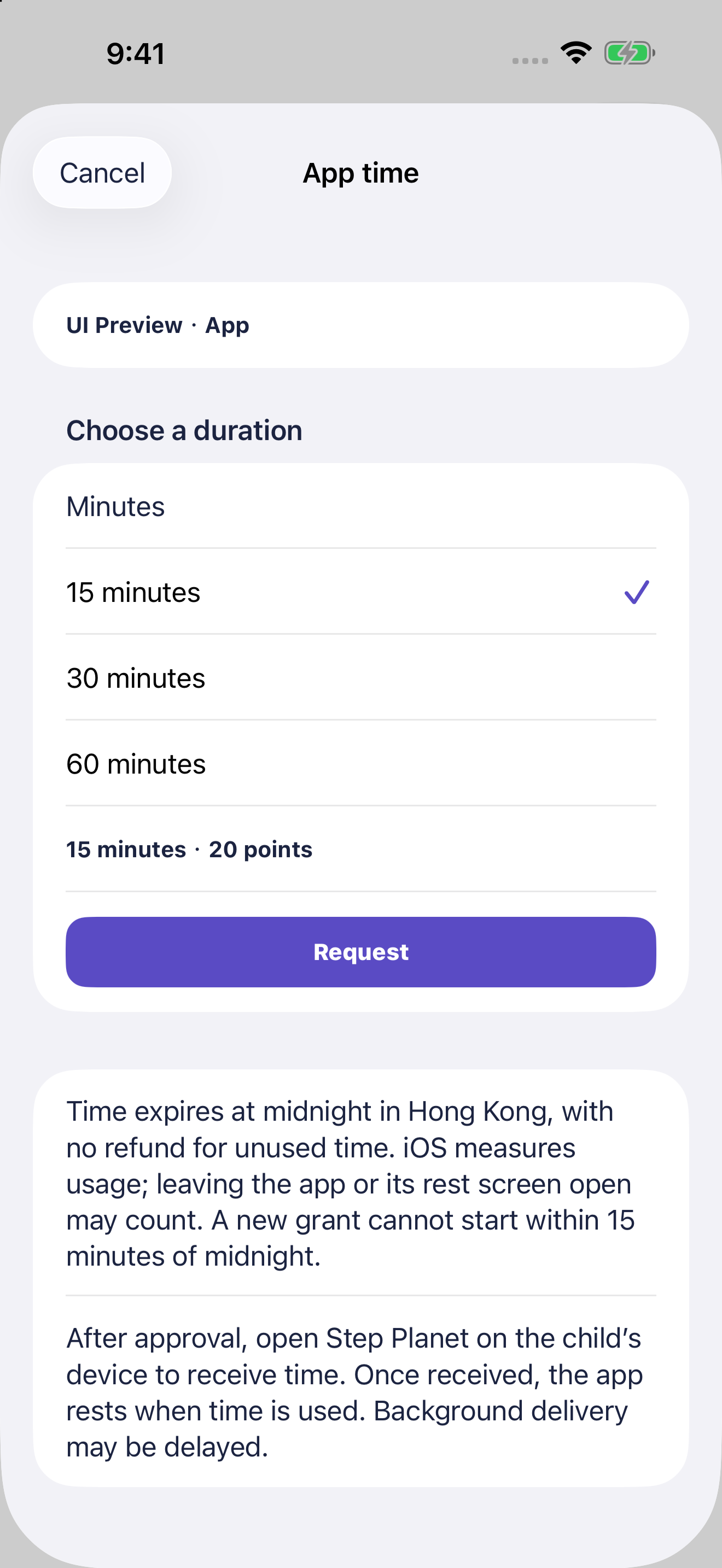
Children request a clear amount of app time, and parents decide whether to approve it.
- Open Shop → App time.
- Choose an app, select 15, 30 or 60 minutes, and check the cost.
- Submit the request. Each app can have one pending request.
- You may cancel while waiting. Pending requests reserve points rather than charging them.
- After approval, return to Step Planet to receive the allowance, then open the target app.
- Request again when needed. Approved extra time queues without resetting used minutes.
View screens (tap an image to enlarge)
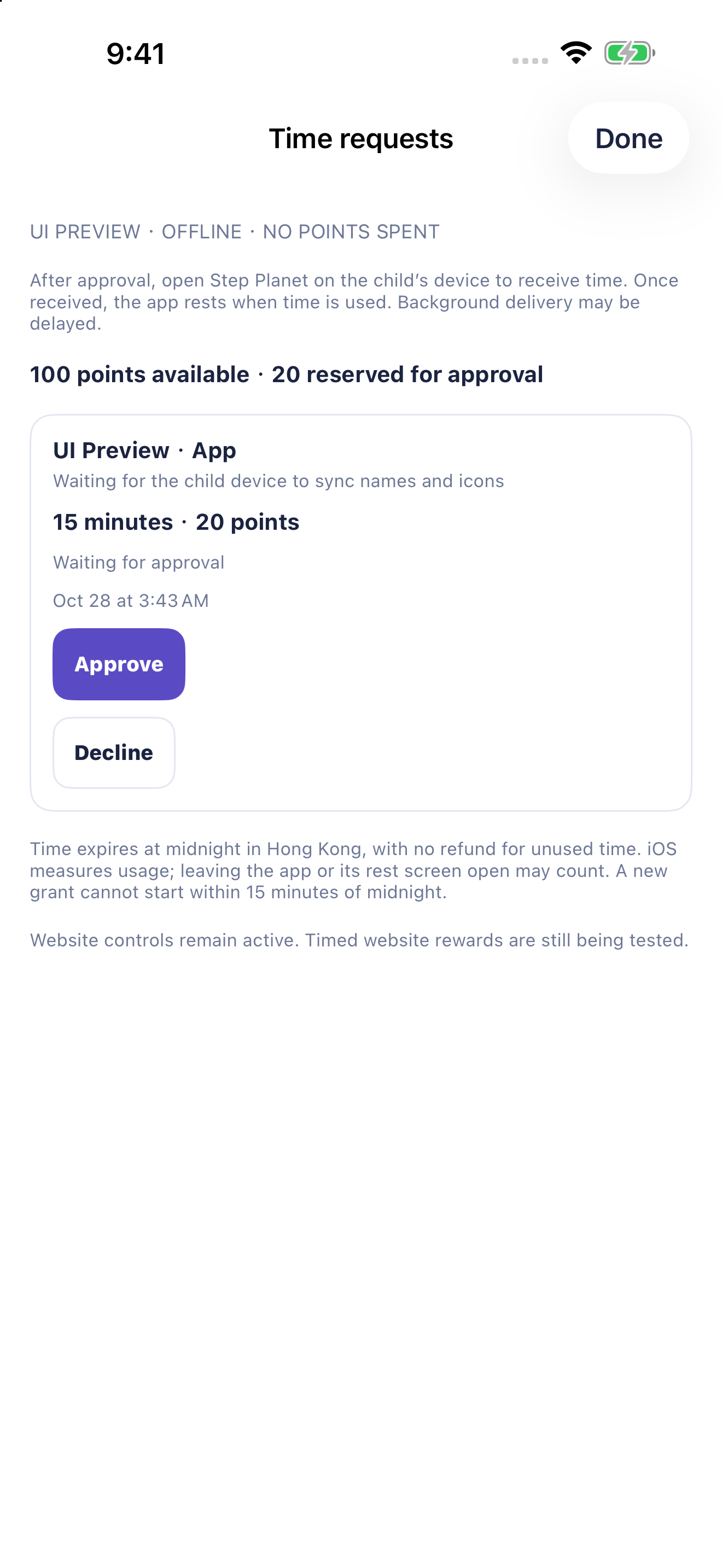
Approve time, then let the limit do its job
Approval, delivery and actual unlocking are separate states.
- Open time requests in Screen and check the selected child.
- Check the app, minutes and cost. Approve the original request or decline it.
- Approval charges once; declining, cancelling or expiry releases pending points.
- The child opens Step Planet to receive time. When the allowance is used up, iOS blocks the app again.
- iOS measures app usage. Check the allowance status instead of treating elapsed clock time as minutes used.
- If the network or monitoring fails, read the status instead of repeatedly approving.
View screens (tap an image to enlarge)
Manage the website as well as the app
Blocking the YouTube app does not automatically block YouTube in a browser.
- Open a setup window and add the website on the child device.
- For a whole site, select or configure the root domain, such as 163.com.
- Save and apply, then check the root and subdomains such as mail.163.com.
- Actually open the site in Safari or Chrome; the list alone is not proof.
- After choosing Free access, wait for the child device to sync and check again.
- Services such as YouTube may use other root domains, which need separate checks and entries.
Plans and family benefits
Consider the number of children and caregivers, and the apps you want to manage. Choose benefits that fit your family’s agreement.
- Open Screen → Control settings → Plans and quotas.
- Basic: one child and one parent; two manually selected app or website items per child.
- Pro: three children and two parents; five manually selected items per child.
- Premium includes whole-category controls, without a plan-level item cap; iOS control limits still apply.
- A pale purple background marks the current plan and its benefits.
- Subscription purchases are not available yet. Trial duration and pricing will be announced for release.
Keep family members easy to recognise
Always check whose information you are changing.
- Use the child selector before opening tasks, rewards or controls.
- Manage child profiles in Settings; plan limits apply.
- The family owner can use the parent-member invitation flow to invite another caregiver.
- Separate caregiver accounts provide clearer access boundaries than sharing one sign-in.
- Rename devices in their details, for example “Jimmy’s iPad”.
- Use the final four identifier characters in details to tell similar devices apart.
Turn off controls or prepare a replacement
Parents initiate deactivation and wait for the child device to confirm, avoiding leftover restrictions.
- Parents request deactivation in Control settings.
- Connect the original child device and open Step Planet to confirm the change.
- Refresh the parent view and wait for completion, not just request submission.
- For replacement, then follow the initial setup flow on the new device.
- Revoking Apple authorisation prevents continued control. Restoring it may require authorisation and reselection.
- Arrange device deactivation before deleting a family or account.
Make the app comfortable to use
Comfortable text and sound settings make daily use easier.
- Parents adjust language, text size and sound in Settings.
- Children use the language and sound controls available on Planet.
- A child’s language choice applies to that device, so family members can use different languages.
- For help, parents use the support and privacy links in Settings.
- Check your sign-in method and family before registering again.
Your next adventure is on its way
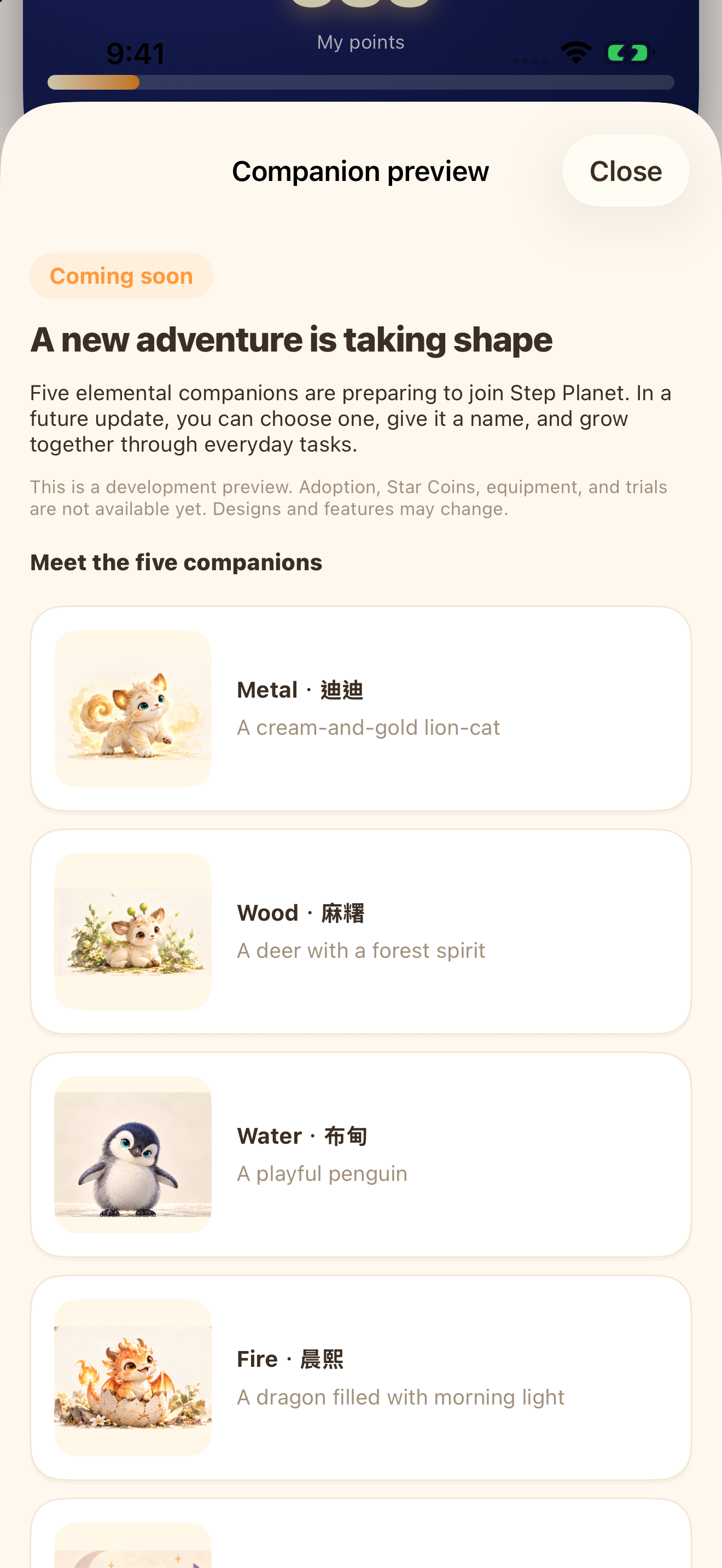
Every little effort lights another star for a new adventure. Five companions from elemental worlds are getting ready to meet you.
- Open the Five Elements Companions preview from Planet.
- Meet the five companions from metal, wood, water, fire and earth.
- Imagine which companion you would love to explore with.
- Close the preview and return to today’s small goal.
View screens (tap an image to enlarge)
A few words that make things clearer
Button and feature names are highlighted. Here are a few plain-language explanations.
- Check-in: a child records that a task has been completed.
- Awaiting review: submitted for a parent to check; points are not necessarily awarded yet.
- Redemption history: see what was redeemed and whether the reward was provided.
- Reserved points: set aside for a pending time request and unavailable for another reward.
- Free access: the app or website can be used without exchanging minutes.
- Applied on device: the child device has reported receiving and applying this setting.
- Root domain: the main website name, such as 163.com; mail.163.com is one of its subdomains.
- iOS limits: system controls have limits on quantity and capability that a paid plan cannot override.
A little help when something feels stuck
Distinguishing Saved, Approved and Applied on device can prevent unnecessary retries.
- Names or icons still syncing: open Step Planet online on the child device, then refresh the parent view.
- Approved but blocked: receive the time in Step Planet and check for separate Apple restrictions.
- App blocked but website opens: add the website separately.
- Several games blocked: check whole-category controls.
- Setup expired: a parent opens setup again, then the child device continues its retained draft.
- Points look wrong: inspect pending reservations and the ledger instead of redeeming repeatedly.
- For support, note the time, message and device type. Never send passwords or complete setup codes.