Your first steps,
together.
Parents create an account; children join with a family code. Start here the first time you open the app.

Account & family setup · 2026.10.28
Download illustrated PDFThis guide mainly covers the iPhone/iPad app. The web version may differ. Device controls require authorisation in the app.
Set up the parent account
Create a family and a child profile first. Children do not need to register a parent email account.
- Open the app and choose the parent sign-in.
- Use your existing sign-in method, or follow the account creation screen.
- Create a family. For an existing web family, sign in and follow the claim flow.
- Create the first child’s nickname and icon. Later, when adding another child, choose a template, copy settings or start blank.
- Find the family code in Settings and share it privately with your child.
View screens (tap an image to enlarge)
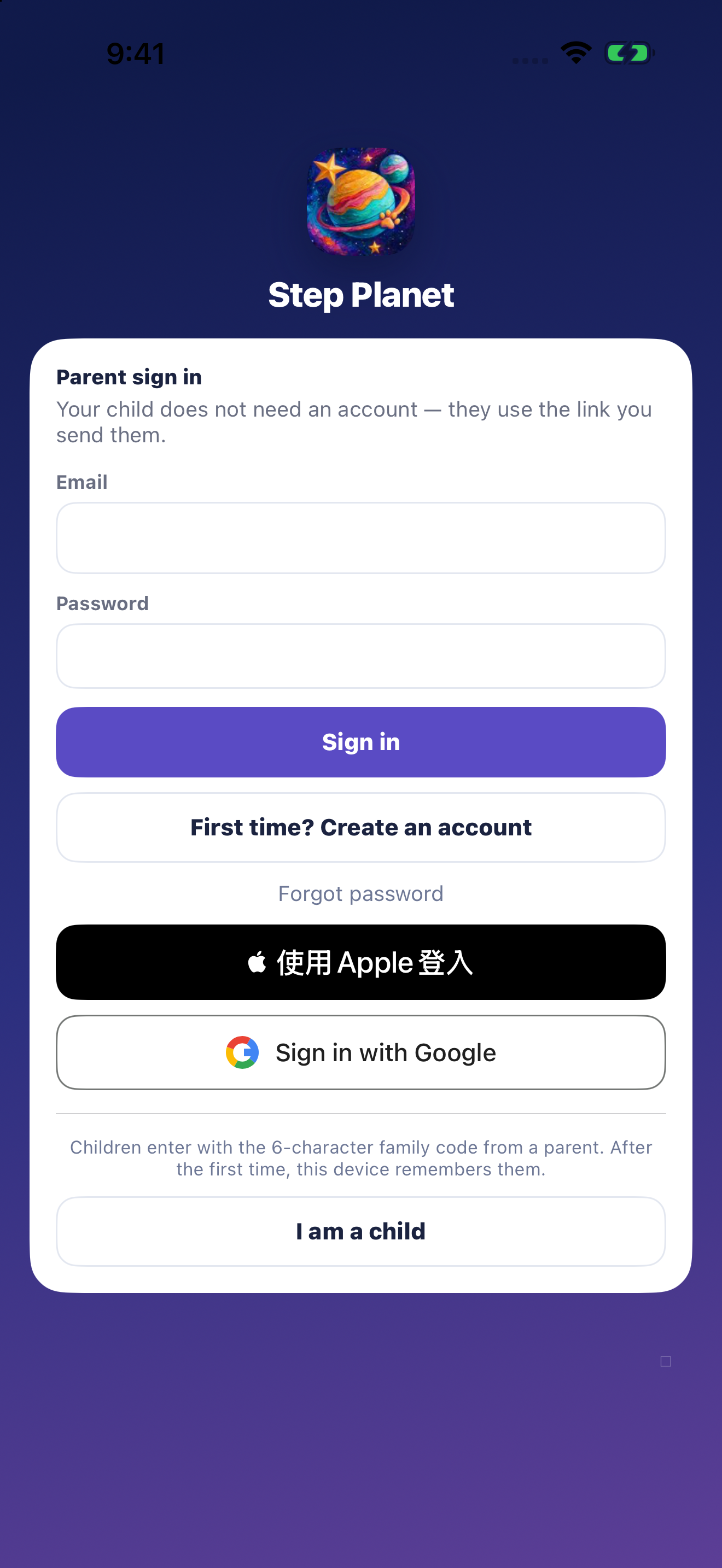
Create your first parent account
A parent creates the account; children join with a family code. Choose a sign-in method you will keep using so the family’s records stay together.
- On Parent sign in, choose First time? Create an account.
- Enter a parent email you can access and choose your own password.
- Follow the password requirements; use a longer password you have not used elsewhere.
- Choose Create account. If asked to check email, open the confirmation message.
- The link may open the website. Afterwards, return to the app and sign in with the same email and password.
- Already registered? Choose Already have an account? Sign in instead.
- Apple and Google sign-in are also available. Parents follow the system prompts and keep using the same method.
View screens (tap an image to enlarge)
Create a family and invite your child
Once the parent account is ready, give the family’s goals a home. A child needs a nickname, not a separate email account.
- After the first sign-in, choose to create a new family.
- Enter a family name and the first child’s nickname, then choose an icon.
- Check starting points and choose Create planet to create the family.
- Find the family code in Settings and share it privately with the child.
- On the child’s device, choose I am a child, enter the code, and select the correct name.
- Parents return to Tasks and adjust the first goals together.
Help a child join
A family code opens the child’s tasks and planet. Device controls require a separate setup and authorisation.
- Install and open Step Planet on the child’s device.
- Choose the child entry and enter the code provided by a parent.
- Select the correct child when prompted.
- Check the name on the Planet screen. The device normally remembers this choice.
- If the family cannot be reached, ask a parent to check the code and child profile first.
Privacy is part of the plan.
Noticing effort does not mean keeping every detail of a child’s life. Each piece of information should have a clear purpose.
- Task photos are uploaded for review by the family’s parents.
- Approval or return removes the photo from the task record; it is not a permanent album.
- Children do not need a personal email account; they join using the parent’s family code.
- Device controls require Apple authorisation; app-selection data is encrypted for authorised family devices.
- Share only what is needed, photograph the result, and keep family codes, setup codes and passwords private.
- Parents can open the Privacy Policy from Settings for the full details.